Prism Central Reports
Prism Central allows you to generate historical reports about your cluster environment.
Such reports can include resource consumption, abnormal behavior, and other valuable operational insights.
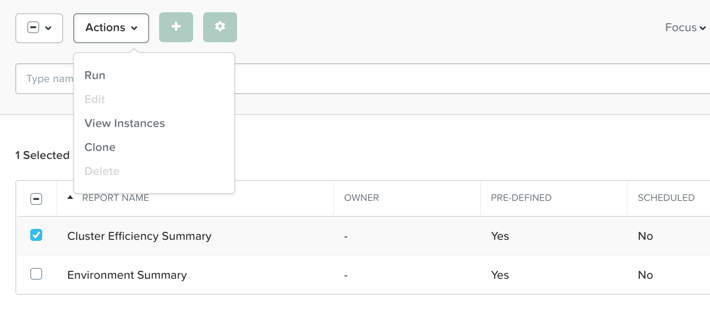
In Prism Central > Explore > Reports.
Lets run the Cluster Efficiency Summary report.
Select Cluster Efficiency Summary, then click Run from the Actions drop-down menu.
Next, fill out the following fields and click Run:
- Report instance Name - Cluster Efficiency Summary - initials
- Time Period for Report - Last 24 Hours
Now lets run the Environment Summary report.
Select Environment Summary, then click Run from the Actions drop-down menu.
Next, fill out the following fields and click Run:
- Report instance Name - Environment Summary - initials
- Time Period for Report - Last 24 Hours
Once the reports are complete, select each report, and do the following:
Click View Instances. from the Actions drop-down menu.
- To view the report in a separate tab, click the name of the report.
- To download the report, select its check box, then click Download at the upper right of the screen.
Review the contents of the reports you created in this exercise.
Capacity Runway
Use Prism Central’s Capacity Runway feature to learn about cluster resource planning and recommendations.
In Prism Central > Planning > Capacity Runway.
- Note the runway summaries showing the days left for each cluster.
- How long does the current cluster has before it runs out of memory, CPU, and storage?
Click one of the clusters.
Note
The most constrained resource is highlighted on the left side.
Note
Clicking Storage, CPU, or Memory Runway displays the chart for that resource.
Click Optimize Resources to see a list of recommended management tasks for reallocating resources, such as optimizing over-provisioned VMs, deleting inactive VMs, or adding resources to constrained VMs.
Close the Capacity Runway view.
What If Planning
Push the initial guess of the capacity planning task to add hypothetical workloads and see how the prediction changes.
In Prism Central > Planning > Scenarios, then click New Scenario.
Next, fill out the following fields:
- Cluster - Select a Cluster Model
- Target - 6 months
- Vendor Type - Nutanix
Now lets add a 150 seat Citrix XenDesktop workload..
Click + Add Workload.
Next, fill out the following fields and click Add Workload:
- Workload - VDI
- Vendor - XenDesktop
- User Type - Power Users
- Provision Type - Machine Creation Services (MCS)
- Number of Users - 150
- On - One Month from now
Repeat this process, adding workloads until the runway falls short of the six-month target.
Save this scenario.
Note the Resources section, which shows the existing hardware.
Click Recommend to see a suggested NX configuration to extend the runway.
Now lets experiment with changing the target and workloads and generating recommendations:
- Additional 150 seats in three months.
- Change in demand every three months.
Generate a PDF report to see detailed capacity planning information.
Bonus Round: Create a Custom Report
To create a new custom report from scratch, click the plus sign beside Actions, then add the desired metrics from the pane on the left side.
Once you have saved the custom report, you can run it just as you would run any other report.
To set a report to run automatically, add a schedule to it.