Flow: Secure App

Overview

Note

Estimated time to complete: 15-30 MINUTES

In this exercise you will create an application category named app-abc. You will assign the AppType: app-abc category to our application VM, which in this example is the flow-abc-5 VM. Finally you will create a security policy to restrict the application VM from receiving ICMP ping requests from VMs outside of the programs-abc: sales-abc category.

Secure Applications with Microsegmentation

Create and Assign Categories

Update AppType with New Category Value app-abc

Log on to the Prism Central environment and navigate to Explore > Categories.

Click the check box beside AppType. Click Actions > Update.

Scroll down and click the plus sign beside the last entry.

Enter app-abc, replacing abc with your initials and click Save.

Assign VM flow-abc-5 to the category AppType: app-abc.

Within the Explore > VMs view in Prism Central, click the check box beside the flow-abc-5 VM.

Click Actions > Manage Categories.

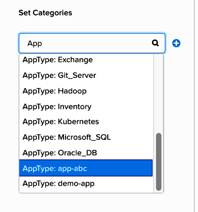
In the Set Categories text box, type AppType and select AppType: app-abc from autocomplete then click Save.

../_images/set_app_category.png

Assign VM flow-abc-1 the default category Environment: Dev

Within the Explore > VMs view in Prism Central, click the check box beside the flow-abc-1 VM.

Click Actions > Manage Categories.

In the Set Categories text box, type Dev and select Environment: Dev from autocomplete then click Save.

Secure the Application VM

Create a new security policy to protect the app-abc application.

Navigate to Explore > Security Policies.

Click Create Security Policy > Secure an Application.

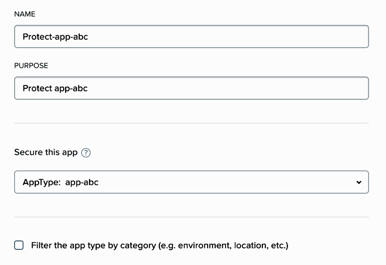
Fill out the following fields and click Next:

  • Name - Protect-app-abc, replacing abc with your initials.
  • Purpose - Protect app-abc from ICMP outside of sales VMs.
  • Secure this app - AppType: app-abc.

Do NOT select the check box for the option Filter the app type by category.

../_images/create_app_vm_sec_pol.png

In the Inbound rules section, allow incoming traffic with the following steps:

  • Leave Whitelist Only selected.
  • Select + Add Source.
  • Leave Add source by: Category selected.
  • Type sales and select programs-abc:sales-abc. Click Add.

Click + which appears on the left side of AppType: app-abc after completing the steps above.

This opens the Create Inbound Rule window.

In the Protocol column, select ICMP to allow inbound ping requests for this app and leave all other fields blank. Click Save.

On the right side, Outbound should be set to Allow All. You should see All Destinations.

flow_secure_app/images/create_inbound_rule.png

Click Next then click Save and Monitor.

Confirm that VMs belonging to the programs-abc:sales-abc category can ping the application VM which belongs to the AppType: app-abc category.

Navigate to Explore > VMs and open the console window for the following three VMs:

  • The designated AppType: app-abc VM, flow-abc-5.
  • The Sales VM (a VM in the programs-abc:sales-abc category, flow-abc-4).
  • The Dev VM (a VM in Environment: Dev, flow-abc-1).

Send a ping from the Sales VM (4) to the AppType: app-abc VM (5).

This ping request should succeed.

Send a ping from the Dev VM (1) to the AppType: app-abc VM (5).

This ping also succeeds, even though Environment: Dev is not part of the allowed policy. Why? What is the policy Status?

Takeaways

  • You also created a category to protect a special application VM. Then you created the security policy to restrict ICMP traffic into that application VM.
  • Notice that the policy created is in Save and Monitor mode, which means traffic is not actually going to get blocked yet until the policy is applied. This is helpful in order to study the connections and ensure no true traffic is getting blocked unintentionally.