-
- What is Nutanix
- Nutanix Terminology
- Monitoring and Managing the Environment
- One-Click Cluster Upgrade
- One-click Hypervisor Conversion
- Simple Cluster Expansions
- Prism Central Dashboards
- Network Visualization
- Prism Self-Service
- Nutanix Calm
- Prism Central Report Managing and Machine Learning Capability
- Actionable Capacity Forecasting
- Just-In-Time Forecast
- Rich and Insightful Analytics
- VM Management for ESXi
- Video Demonstration: Cluster Software Update
- Video Demonstration: Cluster Expansion
- Lab - Monitoring
- What Is Flow
- Flow: Enable and Lab Setup
- Flow: Quarantine VM
- Flow: Isolate Environments
- Flow: Secure App
- Flow: Visualization
- What Is Calm
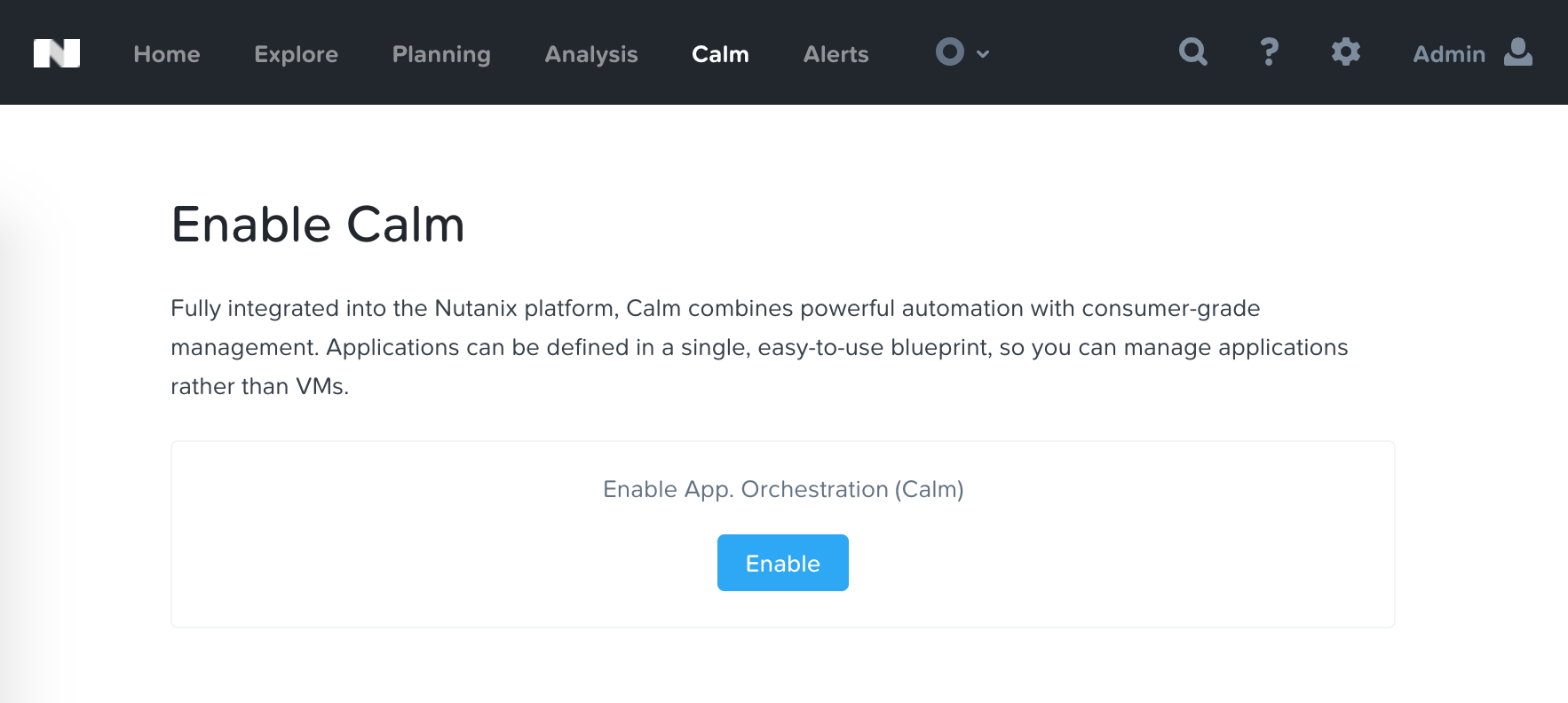
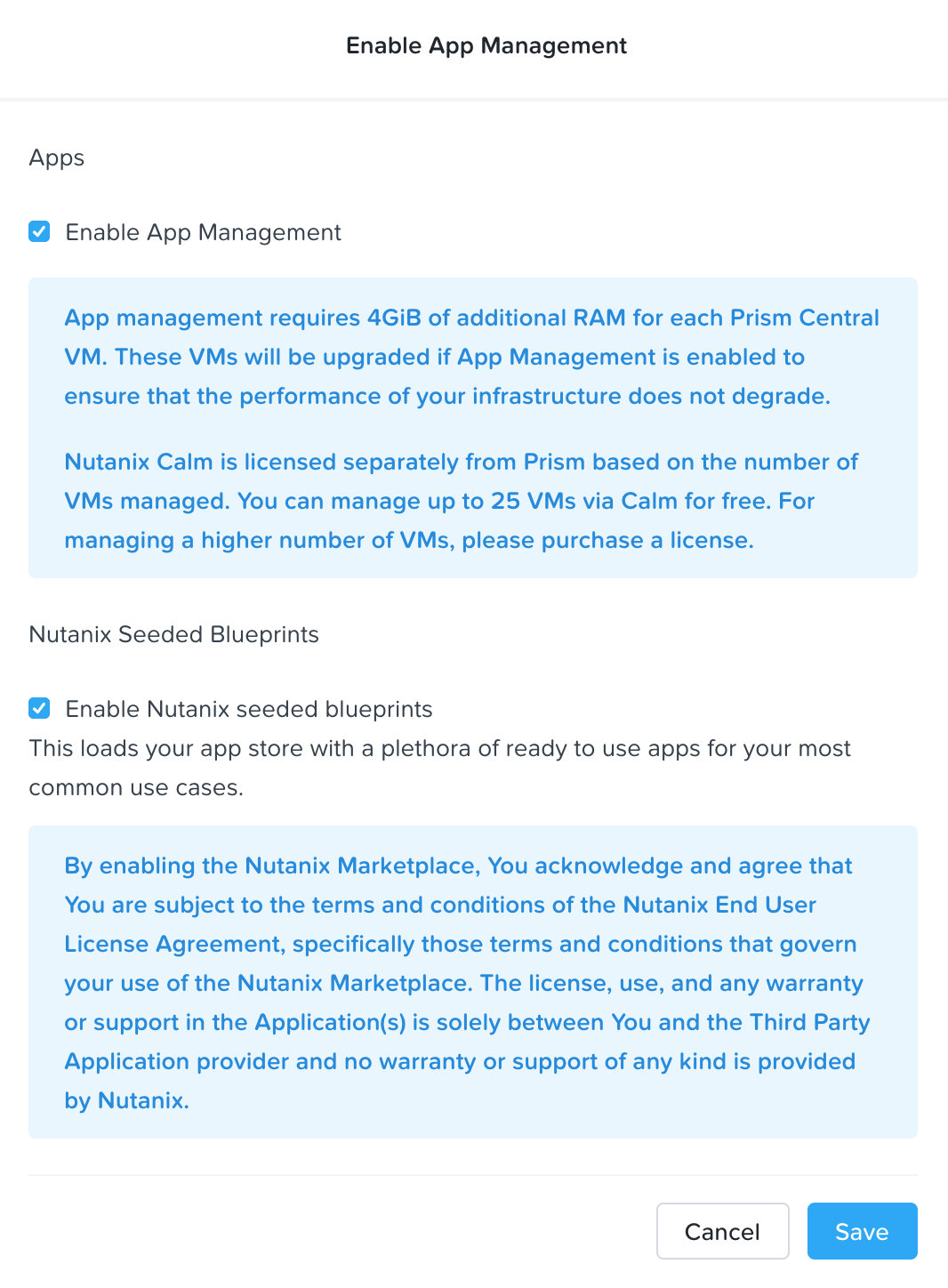
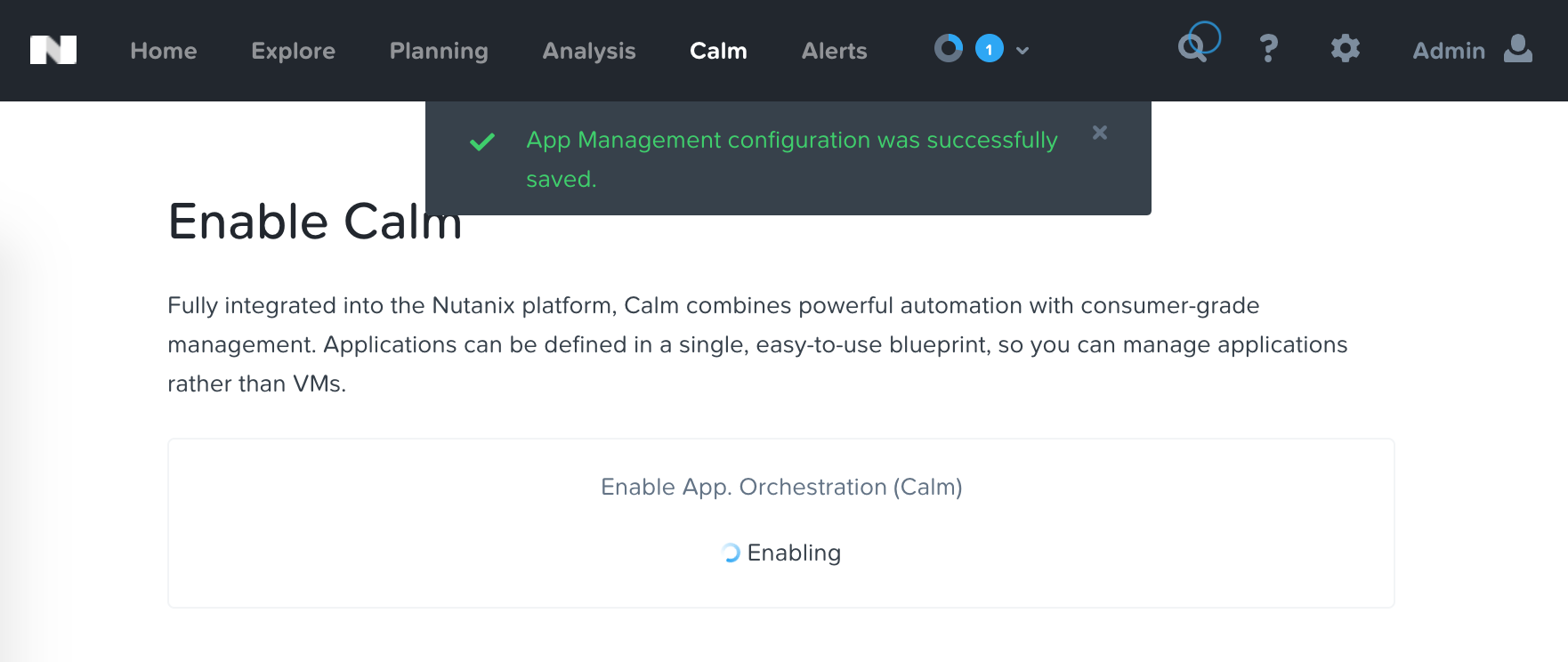
- Calm: Enable
- Calm: Projects
- Calm: SSH Key Creation
- Calm: MySQL Blueprint
- Calm: 3TWA Blueprint
- Calm: Windows Blueprint
- Calm: Marketplace
Technology Overview
Nutanix Configuration Labs
Deploying and Managing Workloads
Monitoring and Managing the Environment
Optional Labs
Optional Flow Lab
Optional Calm Lab
Appendix